

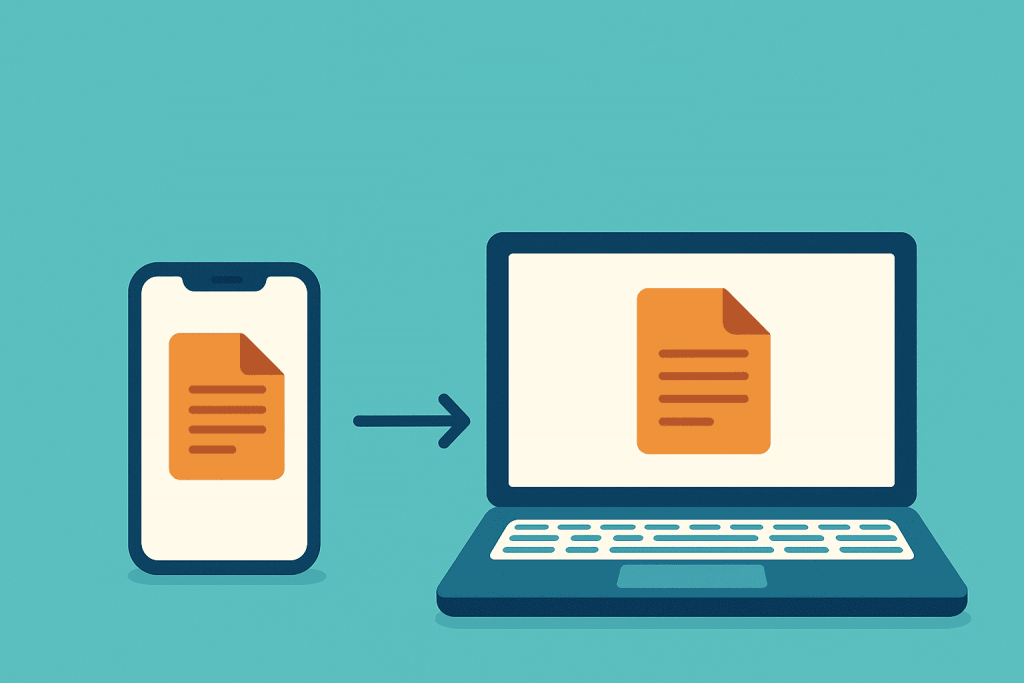
In today’s digital environment, sharing files between a smartphone and a laptop has become a routine part of everyday work. Photos for publications, documents, videos for editing, screenshots from messengers — all of this must be transferred quickly from one device to another. While people once used cables or flash drives for this, now there is a wide range of far more convenient tools. To help users navigate these options, it’s important to understand which solutions are the easiest to use, how they work, and in which situations they perform best.
Cloud services as a universal transfer method
Cloud services are online storage platforms where files are saved on provider servers and can be accessed from any device via the internet. These include Google Drive, iCloud, Dropbox, and OneDrive. The transfer process is simple: a file is uploaded from the phone to the cloud, then opened or downloaded on the laptop. The advantage is automatic synchronization: if you edit a document on your laptop, the updated version appears instantly on your smartphone. This is especially convenient for working with notes, shared documents, and images. Cloud storage doesn’t require cables and works across different operating systems, making it a universal tool.
AirDrop and Nearby Share for instant transfers
Built-in file transfer features remain some of the fastest ways to share data. AirDrop works on Apple devices, and Nearby Share (later renamed Quick Share) functions on Android and Windows. Both tools use a combination of Bluetooth and Wi-Fi Direct. Bluetooth establishes the initial connection between devices, while Wi-Fi Direct transfers data directly at high speed, bypassing the internet. As a result, files do not go through the cloud — they are transferred directly, which significantly accelerates the process. This option is ideal for photos, videos, or documents that don’t need to be stored in shared access. The key requirement is that both devices are close to each other and support the respective technology.
Telegram and other messengers as a quick way to “send something fast”
Messengers have long become tools not only for communication but also for file sharing. Telegram, Viber, WhatsApp, and other apps allow you to send documents, archives, photos, and videos in just a few clicks. The convenience lies in instant access to the file history: send a file to yourself in a chat on your phone — then open it on your laptop by logging into the web version or desktop app. Telegram stands out because it supports large file transfers and compresses images less aggressively compared to competitors. For quick one-time transfers, this is one of the most comfortable options. However, it’s important to remember that some messengers automatically compress files, so you should choose the “Without compression” mode if quality is essential.
Email as a classic tool that still works
Although email may seem like an outdated method of transferring files, it remains a reliable and universal solution. Its advantage is that email works on all devices, and attachments remain saved in the “Sent” folder or in the provider’s cloud storage. This is useful when you need to transfer documents that must stay attached to a specific conversation. Additionally, email services offer detailed history logs, which make it easier to find files later. A drawback may be attachment size limits, but many providers automatically upload large files to the cloud and insert a link into the email instead.
USB-C or Lightning cable for maximum speed
Despite the convenience of wireless methods, a cable remains the fastest and most reliable tool — especially for large files such as high-resolution videos. Wired transfer provides speeds that most wireless technologies cannot match. It also does not depend on the internet or Bluetooth. On Android, the “file system” mode works well, where the smartphone appears as a storage device. On iPhone, transfers are done via iTunes or Finder on macOS. A cable is also more reliable for preserving the original file quality, which is important for photographers and videographers.
Wi-Fi transfer via a local network
More advanced users can take advantage of local transfer tools — FTP servers, SMB connections, or special apps like Send Anywhere or Snapdrop. FTP is a file transfer protocol that allows access to phone storage through a browser or file manager by simply connecting both devices to the same Wi-Fi network. SMB is a technology used for file sharing between computers on local networks. Apps that operate on top of these protocols enable quick access to the internal phone storage and allow direct file transfer without extra cables. This method suits users who frequently work with large volumes of data and need full control over folder structure without additional limitations.
Why choosing the right tool saves time and preserves quality
Although all these tools perform the same function, they differ in speed, transfer quality, network requirements, and ease of use. For large video files, a cable works best. For quick everyday transfers — messengers or AirDrop. For long-term storage and synchronization — cloud services. The right choice depends on the task, but the most important thing is knowing which method works most efficiently.
In the end, it’s worth noting that comfortable file management often depends on having a stable online infrastructure. If you work with large amounts of data, it’s important to have reliable and fast cloud storage or a VPS server. RX-NAME offers exactly these types of solutions, allowing you to store backups, photo archives, or work materials with high access speed and strong data protection.
Leave a Reply