
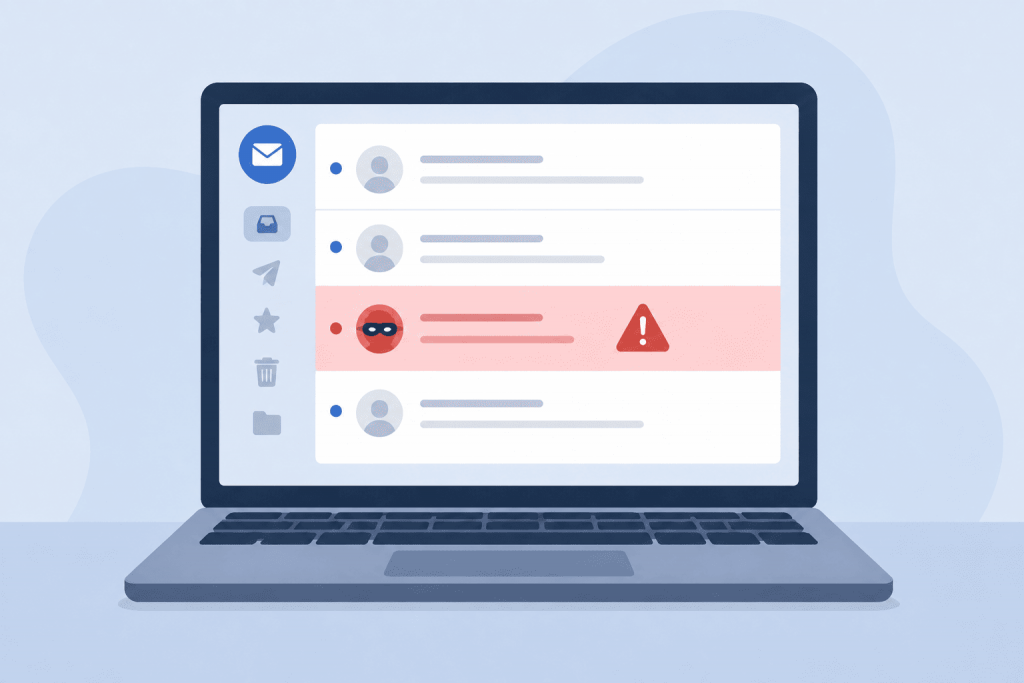
You receive an email from a bank, mobile operator, service provider, or business partner. It says that a payment is overdue, your password is about to expire, or your account will soon be suspended. There is usually a button and a request to act right away. Everything may look familiar, including the logo and layout. Even so, it is worth stopping for a moment and checking who really sent the message.
Scam emails do not target private users alone. Businesses receive them as well. The sender may pose as a bank, software vendor, email provider, contractor, or another company the recipient regularly deals with. That familiarity is what makes the message effective. A routine-looking notice may get a quick response before anyone looks closely at the sender’s address or the page behind the button.
What to Check Before You Follow a Link
A professional-looking email is not necessarily a genuine one. Before doing what it asks, check a few details.
- Open the sender details and look at the full address. The name shown in the inbox can be set to anything. What matters is the domain after the @ symbol. Watch for swapped letters, extra words, an unusual domain ending, or an address that has no clear connection to the company.
- See whether the message gives any real details. A legitimate service notice will usually identify the invoice, contract, domain, plan, account, or service involved. A warning that simply says “your password is expiring” without naming the account or provider deserves a closer look.
- Notice how strongly the email tries to rush you. Threats of immediate suspension, deleted data, penalties, or lost access are often there to prevent careful checking. Urgency does not automatically mean fraud, but it is a good reason to slow down rather than speed up.
- Check where the button actually leads. On a computer, hover over the button or text link without clicking it. The destination should appear at the bottom of the email client or browser window. On a phone, press and hold the link, then inspect it without choosing the option to open it. Look at the actual domain. A familiar word placed somewhere inside a long URL proves very little.
- Go to the customer account on your own. Type the official website address into the browser or open a bookmark you already trust. A real invoice, service expiry, or account warning will usually be visible there too.
Poor grammar, an odd greeting, or inconsistent formatting can expose a fake, but these are no longer reliable signs on their own. Some scam emails are cleanly written and carefully designed. At first glance, they may look no different from an ordinary service notification.
Below is a real scam email received at an RX-NAME corporate address.
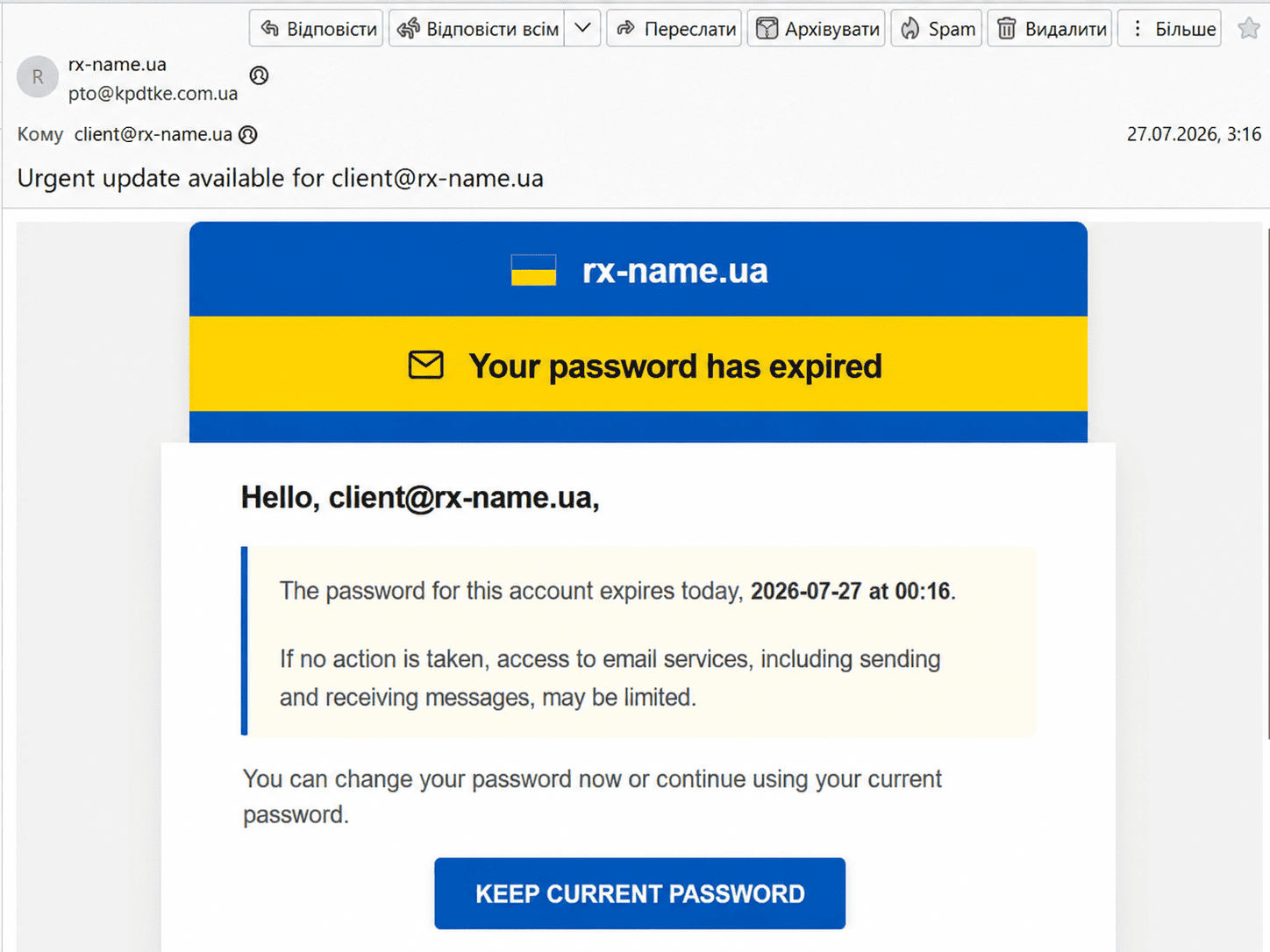
The sender found a publicly available company email address and inserted it into a prepared template. That made the message look as though it referred to an actual mailbox or website. Yet it never identifies the company supposedly managing the address, the service involved, or the reason the password should expire. Messages like this are commonly sent in bulk. The sender only needs one website owner or employee to mistake the email for a routine system notice and press the button.
What to Do When an Email Looks Suspicious
Do not reply to the message or use the phone number, email address, or support link it contains. Those details may lead straight back to the sender. Open the company’s official website separately and find its support contacts there.
For a message that appears to concern RX-NAME services, start by checking the sender’s domain. Official correspondence comes from addresses on the rx-name.ua and server.ua domains. The rx-name.net domain is used for international customers. Customer accounts are available at my.rx-name.ua and my.server.ua, while the international account is located at my.rx-name.net.
When an email claims to be from RX-NAME but something about the address or link does not look right, contact our support team and ask whether the message is genuine. Do this before opening the link, entering account details, or making a payment. Support is available through your customer account, the chatbot on the website, Telegram @Server_ua_Support, by phone at 0 800 21-05-05, or by email at client@rx-name.ua.
Send a screenshot along with the sender’s full address and the URL shown when you hover over the button. There is no need to visit that page.
Avoid forwarding the email to someone else with a request to “check what is there.” Mark it as phishing or spam instead. When the message arrives at a work address, it is also worth informing the person responsible for IT or information security.
What to Do If You Have Already Opened the Link
The right response depends on what happened after the page loaded.
- You opened the page but did nothing else. Close it. Do not accept notifications, install an extension, or download anything. Check the downloads folder because some pages start a download automatically. Then run a full security scan on the device.
- You entered a username and password. Treat both as exposed. Using another trusted device, open the official website by typing the address yourself. Change the password and sign out of every active session. Review the login history, connected devices, recovery email, and phone number. Any other account using the same password needs a new one as well.
- You entered a verification code. It may have been used immediately. Change the password without delay, end all open sessions, and review the two-factor authentication settings. Replace the existing backup codes where the service provides them.
- You entered payment card details. Contact the bank through its official app or the number printed on the card. Explain that the details may have been exposed. The bank can freeze or reissue the card and check whether any unfamiliar transactions have appeared.
- You downloaded or ran a file. Disconnect the device from the internet and, if applicable, from the local network. Until it has been checked, do not use it for email, online banking, or customer accounts. Run a full system scan. Change important passwords from another device you trust.
A changed password may not be enough when someone has already accessed the account. Check active sessions, automatic email forwarding, autoresponders, connected applications, and recovery details. Remove anything you do not recognize and tell the service provider that the account may have been compromised.
How to Limit Unwanted and Scam Emails
Spam bots rarely collect addresses by hand. They scan websites, public directories, and other open sources. Public domain registration details may also reveal an owner’s name, email address, or other contact information.
Where registry rules allow it, domain privacy can hide those details from public view. It is worth checking for every domain, regardless of its zone. Some Ukrainian domain zones hide owner information automatically or include this option without an extra fee. With other domains, privacy needs to be activated separately.
RX-NAME can check whether domain privacy is available for a particular domain and enable it where the registry supports this option. It will not stop every unwanted message. Still, there will be less public information for bots to collect and less material for scammers to use in more convincing emails.
The simplest defence remains one of the most useful: pause before clicking. Check the sender, inspect the destination, and open the customer account separately. That small delay is often enough to spot the problem before a password, payment, or account falls into the wrong hands.
Leave a Reply